Getting Things Done with Springpad
I have just come across Springpad via a Google Alert and thought I would share it all with you.
Springpad is a web-based life organizer that is based on free online notebooks, called Springpads. There are Springpads for most items from a Moving Checklist right through to a Daily Diary. There is even a GTD Notebook Springpad which allows you to organize your tasks in a system based on the Getting Things Done methodology from David Allen.
Check out the welcome video below from Springpad.
This does seems like a different approach from the normal web based organizers and one that I feel needs a more in-depth look before I make my mind up as to the value of the application.
I have registered for an account and I have added it to my review list so expect to see an in-depth review coming soon.
have you tried Springpad? I would love to know what you thought about it.
- 2 Comments... What do you think?
- Subscribe to RSS
Mind Map Application MindManager Updates to v8

Mind Manager, what I consider to be the best Mind Mapping application has just upgraded to version 8.
At this point this upgrade is only for Windows users so if you are a Mac user like me, you have to stick with the version 7 for Mac until version 8 comes out. The Windows version of Mind Manager has always been a lot more feature rich than the Mac version and I have found myself using the Windows version in VMware when I have needed to use some of the more advanced export features of the Windows Mind Manager application.
So, what is new in Mind Manager 8?
- Mindjet Player
Communicate your vision and ideas with the world by transforming your map into a fully interactive Adobe PDF file. Or publish it as an interactive Adobe Flash file to a Web page or blog. Recipients do not need to download and install any software – most desktops are already equipped for consuming these standard file formats. - Automated Task Management
Get a quick overview plus ongoing progress on all project tasks—automatically. Visual cues and status indicators allow you to quickly determine the status of critical activities. View the ripple effect of any changes to a map and even run “what if” scenarios to see the resulting outcomes. - Integrated Microsoft Office File Editing
View and edit attached Microsoft Word, Excel, Project and PowerPoint files within MindManager. No need to disrupt your focus by constantly switching between applications – it can all happen from your map. Please see MindManager 8 system requirements for details. - Integrated Web Content
Content Fully leverage the incredible information resources of the Internet by initiating Web searches right from a map. Real-time search results will appear whenever you view your map. Build your own Web service to add information from your company’s information systems. - Embedded Web Browser
View Web pages and Adobe PDF documents without leaving your map. You’ll retain your train of thought by staying focused on work at hand. - Database Linker
Display real-time information in your map from databases, Excel spreadsheets, CRM systems and other company resources. Just imagine how much more productive and focused you’ll be with your most critical business data right at your fingertips. - Powerful Search
MindManager now lets you search through your maps and all attached documents with ease. Or use one of today’s popular desktop search applications. Rest easy, knowing any bit of information you may need is just a quick search away. - Mindjet Connect Ribbon Tab
Enjoy fast access to all Mindjet Connect features and management utilities.
Quite a few cool features in there. What interests me the most and will be the reason I upgrade is the addition of the MindJet player. I can now create Mind Maps and embed them into a website. This is going to be awesome from a usability point of view, especially for my Mind Mapping Certification site at www.mindcert.com.

You can see an example of the MindJet player by following this link to the MindJet website. The sample map shows you some of the features of Mind Manager 8.
- 1 Comment... What do you think?
- Subscribe to RSS
Dixau Text Scanner – Time Saving Scanner
Just been looking at the Dixau Text Scanner; a gadget which is able to scan pages and pick out relevant information and I thought I would write a little review of it, as it is classed as a Productivity Gadget.
Although the biggest market for such a device is probably with students the Text Scanner is definitely exciting for anyone who must tediously deal with large volumes of writing on a daily basis.
Tasks such as rewriting quotes or passages from any textual documents (including magazines, research materials, books, business reports, etc.) can be cleanly recognized and clipped by the Dixau Text Scanner and then copied into a text editor.
It saves an incredible amount of time usually spent typing or writing out words from a physical source, acting as something like a highly-evolved scanner. Also interesting is the Text Scanner’s ability to reference secondary sources by picking out keywords. Dixau consults Wikipedia, Google and e-dictionaries to supplement whatever material you may be working with.
The gadget is extremely exciting as a time-saving expansion on reading and editing. The implications of its system on both learning and more efficient work make it an extremely worthwhile piece of technology.
Whether used as a short-cut toward quicker reference or as a means of copying out text, the Dixau Text Scanner is one of the most innovative productivity gadgets ever created.
I have managed to find a video showing the scanner in action. It is a Japanese, or at least it looks Japanese video although the audio is in English.
Hope you found this little Productivity Gadget review useful. Looks a neat little tool. They are priced around $90 but I have not yet found a link to buy them, when I do I will post it here.
- 1 Comment... What do you think?
- Subscribe to RSS
Productivity, Motivation, and Personal Development Links – 16th November 2008
Another productive week draws to an end. I submitted a major piece of work that I had been creating over the past couple of weeks. You cannot beat the feeling when you hit the submit button and the work is complete. Kind of like checking off those tasks on your task list.
Here are my collection of links for this week.
- My first link for this week is a link to the new Paper Based Coordinators from the David Allen Company. These are paper based planners for Getting Things Done. I use electronic systems to Get Things Done although I do rely on my Moleskine for note taking when out of the office. I first heard about these from the GTD-Times post.
- My second link is a link to the GTD Dictionary from Organize IT. I have been following this dictionary for a few weeks and they are good little definitions of frequently used GTD words. This link points to the tag for the dictionary so contains all the posts.
- My third link is a link to a blog post from the Flipping Heck Blog about why the Four Hour Work Week does not work in the real world. I love the 4HWW but also agree that a lot of it is pretty much unusable for most in the real world. I am sure it helps to sell books, and I did enjoy the book and must review it soon.
- My fourth link is a link to a post from John Gruber of Daring Fireball about how he implements his email system to get things done. Good read from a fantastic blog.
- My fifth and last link for this week is a link to the Getting Started in Productivity, Abbreviations post from the Simple Productivity Blog. Just stumbled across this colorful new blog. Check it out and see what you think.
I am looking forward to some more GTD Application Reviews that I have already done and I am getting ready to post this week. They include apps such as Zenbe and GTD-Free.
Hope you are all still enjoying the blog!
- 6 Comments... What do you think?
- Subscribe to RSS
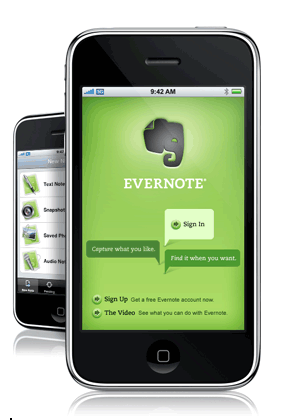
Evernote Updates Mac and iPhone Application
In the past couple of days, both the Mac and iPhone/iPod Touch versions of Evernote have been upgraded.
For those of you who have not seen Evernote, it is an application that allows you to capture and process notes. These notes can be text, photos, web clippings and much more. Evernote is available as a Web application, a Windows application, a Mac application, and an iPhone/iPod Touch application.
The Mac version is now at version 1.16 The improvements for this version are as follows:
- You can now create bulleted and numbered lists, tables, and horizontal rules within your notes using the spiffy new note toolbar. We’ve made a bunch of smaller tweaks and enhancements that are less noticeable, but will make typing notes a lot better.
- Ever wanted to type a link into a note, or, better yet, remove one that was already in there? Well now you can. Just CMD+click, select Link from the menu, and choose Add. To remove a link, hover over the link, CMD+click, select Link from the menu, and choose Remove.
- This is one of our releases aimed at improving many aspects of Evernote that you may not see. Trust us, these changes will make your overall experience with Evernote much more positive.
The iPhone and iPod Touch version of the app is now at version 1.5. The main updates to version 1.5 are as follows:
- Voice Notes are now available on iPod Touch when the microphone headset is used.
- Enhanced support for European mobile carriers.
- Improved camera orientation handling
- Misc bug fixes
I still use Evernote and must admit that it is a great application that I could probably get a lot more out of. I will have to start to look for new ways of using it.
Do you use Evernote? If so I would love to hear how you use it so please comment on this post.
Thanks,
- 0 Comment... What do you think?
- Subscribe to RSS
AwayFind – Increase your Email Productivity
In the last update from my email productivity experiment, I mentioned that I had been told about a new online service called AwayFind which apparently would help with the issues I was having.
This blog post is worth reading as it will save you time, just as it saved me time. I use AwayFind as my email solution and do not get paid anything for telling you that I use it. You are getting the best type of recommendation for this product as I am a Raving Fan of it and believe that it can save you time.
I get a lot of free invites and requests to check things out but after a few days, I did manage to log in to the account that had been created for me and check it out. I am happy to say that I was very happy with what I saw.
From the AwayFind website:
Awayfind is not just a web tool,
it’s a blueprint for escaping email, with a handbook and a community to ensure your success.
In a nutshell, AwayFind is a web application that provides you with a web contact form that you can use in your email signature or auto-responder that enables people to contact you. There is also a methodology and associated free eBook once you sign up with simple, clear instructions on how to configure the system in order to reduce the burden email puts you under.
So, somebody sends you an email. Your auto-responder thanks them and tells them you are not checking email frequently so if their matter is urgent to please contact you via the AwayFind contact form. If the matter is not urgent, the email stays in your inbox ready for you to read it at your will.
If the matter is urgent, they will fill in the contact form and you will be contacted immediately via your preferred method.
To get started with AwayFind you need to head over to the AwayFind site and sign up for a free account.
Once you have an account you can login and from here you get your AwayFind Inbox and a very simple control panel. The first thing you want to be doing is editing your contact form.
This contact form is the form that you will direct people to in order to get in touch with you and it is the key component of the AwayFind service.

You can really personalize this form with your own details and logos to make it look an extension of your corporate branding.
Once this is complete, the next important step is to set how AwayFind reaches you. This is the method of contact once somebody completes the AwayFind web contact form. This is an important part. If you are not checking email, there is no point using your main email address as the contact method. It kind of defeats the purpose.
The way I use this is twofold. I have entered my cell phone number so that I get an SMS message and I have also cleverly entered my MobileMe email address.
As I use an iPhone and MobileMe, these emails are pushed to me and it does work pretty neat. I do not use the MobileMe address for much else so I know when I get an email on that account it is an important one. I sometimes have data and no cell coverage and sometimes cell coverage and no data. So, I always know I will get the urgent message.
Once AwayFind is configured you need to set up your mail server to send the auto-responder, for which instructions are available via AwayFind for the major mail server vendors. AwayFind even produce some sample auto-responders for you to use.

So, how have I got on with AwayFind?
Well, I have been using AwayFind for the last month or so. I check email twice a day, or when I need to. I have stopped mail notifications and I manually check email on my iPhone.
I am totally free of “notification twitch”, that common complaint suffered by anybody who has ever owned a Blackberry!
I get on average two or three urgent requests a week. I have had no complaints out of people who email me, just curiosity about the system and how much time it is saving me.
If you want to save time and check email only twice a day, or less, then you either risk missing the occasional important time sensitive emails or you sign up to AwayFind.
I do realize that this will not work for everybody as unfortunately some people would not get away with this in their working environment due to the outdated attitudes of their superiors. However, give it a try, make them try it and I am sure, that you will see the benefit of the system.
I know this has sounded like a long sales pitch, but it is a subject that I am passionate about and I am full of enthusiasm for AwayFind. I wish them every success.
Have any of you tried AwayFind?, any views about the service or methodology? I would love to hear.
Thanks.
- 5 Comments... What do you think?
- Subscribe to RSS
Getting Things Done GTD with Remember The Milk
Remember the Milk is a task management application which enjoys some of the widest support options of any similar program. It fits in nicely with the Getting Things Done methodology as it combines many of David Allen’s key concepts into one tidy, convenient app which can greatly encourage better productivity and lower stress for its users.
From the Remember the Milk Website:
Take your tasks anywhere with this feature-packed application. See tasks located nearby, add and complete tasks on the go, organize upcoming tasks, and sync it all seamlessly with Remember The Milk.
The program hosts excellent visuals and functionality. Everything looks superb and the layout of every tool has been properly developed to encourage ease of use and a genuine desire to come back to the system daily.
Every version of Remember the Milk has been given due attention too which means that whether you’re accessing it via a computer, Blackberry or iPhone, the same convenient navigation and solid layout will be represented across the board.

Remember the Milk uses the same design ethic embraced by so many other GTD developers by keeping everything as simple as possible.
All of the most common features necessary for proper implementation of the GTD system are represented here. Perhaps one of the most interesting (and innovative) features is the “Locate Your Tasks” option which places your various tasks on a Google map for easy access and grouping.
Little touches such as this go a long way toward extending the functionality of Remember the Milk as well as helping in setting it apart from the competition.
The program allows for other important features too. Tasks can be designated for reminders (issued by various SMS platforms) or easily synced and shared with as many collaborators as are desired.
“Quick Add” makes the addition of new information incredibly simple and convenient and the ability to customize your priorities goes a long way toward helping to make the whole package come together.
Remember the Milk allows users to group their various tasks into any number of categories such as headings like “personal”, “work”, “call” and more.
The ability to customize your lists into as many or as little grouping as desired is something that will no doubt be very welcome to those using the application and it really helps to expand the user-base from people who only want to use the program minimally to those who require the presence of very in-depth choices.
If there is a major drawback it is really only in the download for iPhone users which requires a small payment to take advantage of. This shouldn’t prove much of a problem considering the incredibly diverse number of options which can be taken advantage of however.

Remember the Milk is accessible through offline Google pages, Google Calendar, Gmail Gadget, Twitter and Blackberry phones. The latter is perhaps the best salve for users who don’t have an iPhone but still wish to make use of the program while on the go.
The blog and help sections of the main page go a long way toward providing a solid support basis for the application as well. While a forum would be a welcome addition, Remember the Milk has such a robust blog archive that almost every question and scrap of news regarding the system can be quickly and easily accessed.
Overall Remember the Milk is certainly one of the best task management applications currently available for users to get onto no matter which version of the service used. The aesthetics, functionality, loads of essential features and great range of support all add up to make Remember the Milk stand out from the crowd of similar applications.
As part of writing this review I signed up for an account with Remember the Milk and I am trialling it aside my usual application, OmniFocus.
It will be interesting to see how I get one with Remember the Milk and I will report back with my findings.
What do you think, got any comments about Remember the Milk or cool tips for using it for Getting Things Done? I would love to hear from you so please comment below.
- 13 Comments... What do you think?
- Subscribe to RSS
NetNewsWire iPhone RSS Productivity Tip
I have been using NetNewsWire on my Mac as my main RSS Newsreader for quite a while now.
I love RSS news feeds and I utilize them to make my own tailored news feed, delivering me the news I want every day. I love explaining RSS to people not in the know. It is like taking the parts you like out of every print newspaper and getting it delivered to you daily, free of charge.

NetNewsWire on the iPhone is one of my most used applications on the iPhone. The ability to sync what you have read between the phone and your desktop via the Newsgator sync service is awesome. This means that once you read something on the phone, it is marked as read on your desktop the next time you launch the desktop news client.
I always find a spare five minutes here and there to catch up with reading my news on my iPhone. There has up to now being a slight problem.
I subscribe to a lot of RSS Feeds. Some of the feeds I read religiously, other are mailing lists that I skim for useful information. This is all good on my desktop, but on my iPhone I find it annoying to have to download all the feeds and also the interface on the iPhone is more restrictive and I find myself having to scroll around a lot of the time looking for my “killer feeds”, of which there are probably around 15.
Well, I have just found a little gem of a feature that is available on the iPhone version of the NetNewsWire application. The cool little feature is the ability to choose what feeds you show on the iPhone.
Simply, swipe across the feed that you do not want to show on the iPhone and select delete. You now have the option to remove the feed for good, or to just remove it from the iPhone.
I know this is a little feature, that maybe you already know about but this is a productivity tip that has improved the way I read news.
I have now reduced my feeds from around 80 to my killer 15 that I want to keep up to speed with when I am out and about.
Hope this has been of use, as usual, would love to hear your comments.
Whilst we are on the subject of feeds, don’t forget to subscribe to the feed from this site and get our productivity and time saving updates direct to your favourite news reader!
- 1 Comment... What do you think?
- Subscribe to RSS
Auto Card Manager Simplifies Wallet Storage
It may seem silly to consider a card managing wallet as a productivity gadget but the bottom line often is that if something can save time and remove stress then it’s usually worthwhile in this department.
Thus, the Auto Card Manager has been created in order to provide a hyper-organized alternative to the mess that can ensue when various cards are kept only in a wallet.
The Auto Card Manager sorts all of your most important cards into special slots which can be accessed through the simple press of a button.
Various credit card, debit and driver license slots are hosted through the width of the Manager (for up to either six or twelve individual cards) and a row of buttons are placed to correspond to each one.
Pushing the labeled button neatly ejects your chosen card and saves the hassle of rooting around in your wallet’s folds while a line waits behind you.
It is interesting technology and a fairly innovative take on productivity gadgets although the overall purpose is perhaps a little bit too specific to make it a great idea for the everyday user.
At $39.99 USD for a 6-card manager and $59.99 USD for a 12-card holder, the Auto Card Manager may be a bit too expensive to warrant now but will certainly be worth a purchase when the price levels out a little.
Check out the YouTube video of the gadget.
Now, I just have to find where to buy one in the UK!
- 0 Comment... What do you think?
- Subscribe to RSS
Productivity, Motivation, and Personal Development Links – 9th November 2008
The last week has been a great week for this blog. I have seen a steady increase in Feedburner subscriptions and a considerable increase in traffic.
I closely follow the analytics for this blog and it is good to see the average page visits per user on the rise, along with the new visitors brought in from the search engines. I have added a few cool WordPress plugins to help with this, all of which I will blog about in the coming weeks.
Don’t forget, if you are not already a subscriber, please subscribe to this blog with either your favorite Newsreader or you can have the updates delivered via email.
Here are my collection of links for this week.
- My first link for this week is from TechRadar.com and it is a collection of 50 time saving techniques for Ubuntu. I know from my stats that I have a considerable amount of viewers who use Ubuntu as their operating system of choice so I am sure this link will be useful.
- My second link is a link to a Life Learning Device. Google Alerts are to thank for this one. It is like a little light that repeats words of wisdom when activated. Looks very quirky!
- My third link is a link to a blog post about Getting the Most out of a Meeting from The Productivity in Context blog. This is a new blog for me and there are some great posts within.
- My fourth link is a link to a new little App I have just began playing with called reQall. I briefly reviewed the application yesterday. As Jott is not available in the UK, this looks like the answer. I have to play fully with it and then do a more in-depth review.
- My fifth and last link for this week is a link to the Top 5 Timesavers from Productivity501. Apart from the Blackberry, I do all of these tips.
Calling it a night now, busy weekend and another busy week ahead.
Thanks, Andrew..
- 3 Comments... What do you think?
- Subscribe to RSS